
Webulator: Build your own website without any special software or know-how!

Recent articles

  • Image Maps

    Webulator allows you to add image maps to allow users to click on different areas of an image in order to link to different places.
  • Submitting the site to search engines

    Webulator automatically generates an XML sitemap file to help search engines to index your site. Clicking on any of the named search engines will submit your sitemap file to them indicating that you want your website to be reindexed.
  • Webulator

    DIY websites for small organisations Low Cost Easy to use Reliable Sustainable Expert technical support
  • Embedding a Twitter feed

    You can embed a Twitter feed to a page using the [Twitter:] tag.
  • Linking to Ofsted reports

    You can use the [Ofsted:URN] command embedded in your article text to create a link to a report on the Ofsted website, where URN is the unique reference number for the establishment you want to find the report for.
  • Hit Counters

    You can track the number of hits on an article using the [HitCounter:] tag.
  • Copying and pasting text from other applications

    When text is copied into an article from another application the formatting can sometimes look a bit odd.
  • Embedding MP3 files

    MP3 files can be uploaded in the same way as all other files. Normally they will just be displayed as a file icon which allows the file to be downloaded, however it is possible to cause the MP3 file to be played in an embedded flash mp3 player instead.
  • Technical Stuff

    This section contains fields for customising your website outside the scope of the colours and fonts settings, for inserting extra information into your website page headers and for adding custom html at the end of every page.
  • Colours and fonts

    This section of the Edit Site page allows you to change background and text colours and the fonts used throughout your website.
RSS Feed of this page

Image Maps

Webulator allows you to add image maps to allow users to click on different areas of an image in order to link to different places.

The image map needs to be created in a seperate application. There are dozens of these to be found online, and this functionality is built into many graphical desktop applications. The image map specifies which areas of the image should link to which URL.

Once you have created an image and imagemap, you need to upload the image to your website. In the 'Alt text' field for the image, you should insert [Usemap:#MapName] where MapName is the 'name' attribute of your image map.

In a separate Text field, with the 'Style for text' dropdown set to 'Plain HTML' you should place your image map. Make sure that the 'name' attribute matches the name after the # in the [UseMap:] tag for your image.
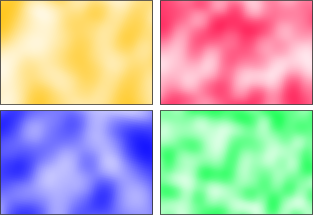
image
Site map BBC website Home Frequently Asked Questions

In this example, our image Alt text is [Usemap:#RoomMap] and our image map is:

<map name="RoomMap">
<area shape="rect" coords="0,0,154,105" href="/index.html?SB2_Action=showsitemap" alt="Site map" title="Site map" target="_blank" />
<area shape="rect" coords="158,0,308,105" href="http://www.bbc.co.uk/" alt="BBC website" title="BBC website" target="_blank" />
<area shape="rect" coords="0,110,154,210" href="/" alt="Home" title="Home" target="_blank" />
<area shape="rect" coords="158,110,308,210" href="/faqs/" alt="Frequently Asked Questions" title="Frequently Asked Questions" target="_blank" />
</map>

The above imagemap would then be shown in the article editor as follows:
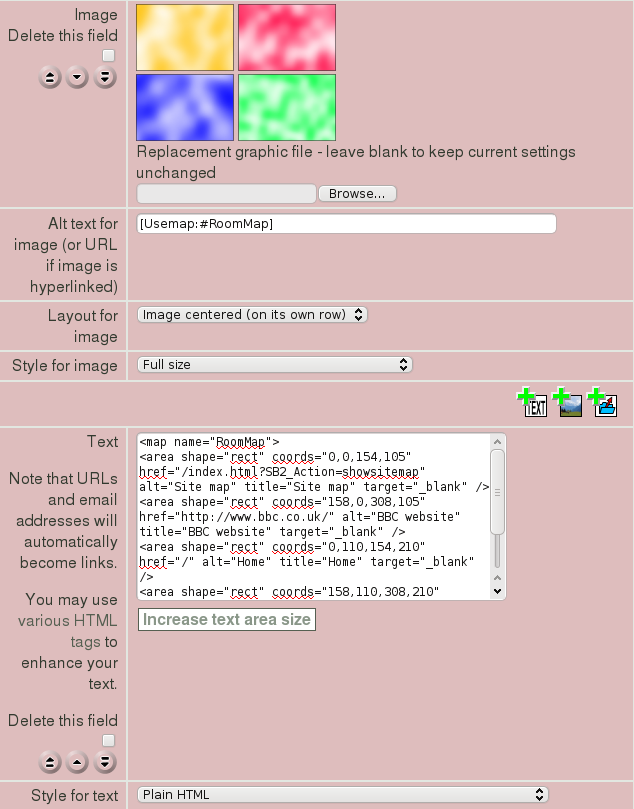
How  an image map is created in the article editor