
Recent articles
    © Dial Solutions Ltd 2009 - 2024
| Colours and fontsThis section of the Edit Site page allows you to change background and text colours and the fonts used throughout your website. Page body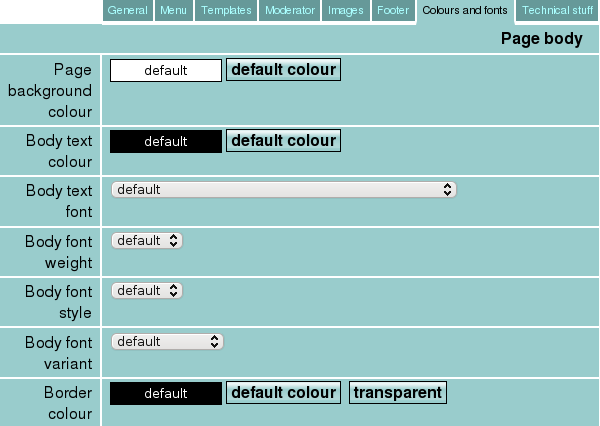 To change the page background colour, click on the coloured rectangle showing the current colour to display a colour picker window and select the new colour. To change the body text colour, click on the coloured rectangle showing the current colour to display a colour picker window and select the new colour. This colour can be overridden using the text colour icon in the simple word processor on the edit article page but this feature should be used with caution (for example, setting some text to be the same colour as a new page background colour, effectively making the text invisible). To change the body text font, click on the drop down box and choose from one of the available fonts. Note that this is not the same as choosing a font when creating a word processing document; your web page is likely to be shown on a diverse set of devices containing in many cases a very limited range of fonts. To change the body font weight, click on the drop down box and choose from one of the available weights. To change the body font style, click on the drop down box and choose from one of the available styles. To change the body font variant, click on the drop down box and choose from one of the available variants. The font variant determines whether the text is displayed in "small caps" or not. A small caps font has all its lower case alphabetical characters displayed as capitals and upper case letters are shown slightly larger than lower case. Some of the elements on your Webulator web pages can have borders, depending on which page layout template you are using. To change the border colour, click on the coloured rectangle showing the current colour to display a colour picker window and select the new colour. You can also set the colour to transparent. Heading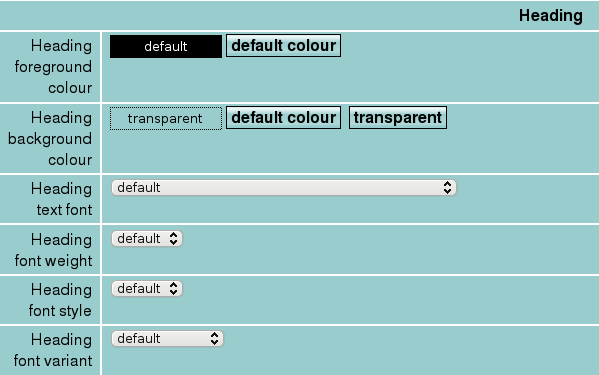 To change the heading text colour, click on the coloured rectangle showing the heading foreground colour to display a colour picker window and select the new colour. To change the heading background colour, click on the coloured rectangle showing the current colour to display a colour picker window and select the new colour. You can also set the background colour to transparent. To change the heading text font, click on the drop down box and choose from one of the available fonts. Note that this is not the same as choosing a font when creating a word processing document; your web page is likely to be shown on a diverse set of devices containing in many cases a very limited range of fonts. To change the heading font weight, click on the drop down box and choose from one of the available weights. To change the heading font style, click on the drop down box and choose from one of the available styles. To change the heading font variant, click on the drop down box and choose from one of the available variants. The font variant determines whether the text is displayed in "small caps" or not. A small caps font has all its lower case alphabetical characters displayed as capitals and upper case letters are shown slightly larger than lower case. Links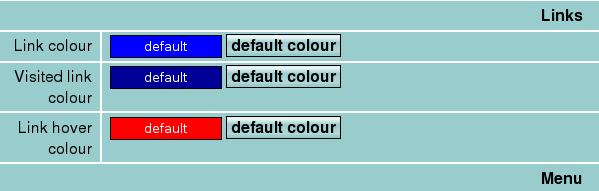 The link colour is used as the text colour for article links which have not been visited. To change the link colour, click on the coloured rectangle showing the current colour to display a colour picker window and select the new colour. The visited link colour is used as the text colour for article links which have been previously viewed. To change the visited link colour, click on the coloured rectangle showing the current colour to display a colour picker window and select the new colour. The link hover colour is used to highlight article links when the mouse pointer is over the link. To change the link hover colour, click on the coloured rectangle showing the current colour to display a colour picker window and select the new colour. Menu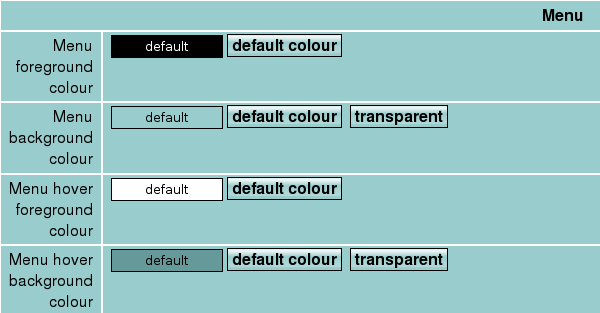 The menu foreground colour is used as the text colour for menu text. To change the menu foreground colour, click on the coloured rectangle showing the current colour to display a colour picker window and select the new colour. The menu background colour is used as the background colour for the menu section. To change the menu background colour, click on the coloured rectangle showing the current colour to display a colour picker window and select the new colour. The menu hover foreground colour is used as the text colour for menu text when the mouse pointer is over the menu. To change the menu hover foreground colour, click on the coloured rectangle showing the current colour to display a colour picker window and select the new colour. The menu hover background colour is used as the background colour for the menu item under the mouse pointer. To change the menu hover background colour, click on the coloured rectangle showing the current colour to display a colour picker window and select the new colour. Footer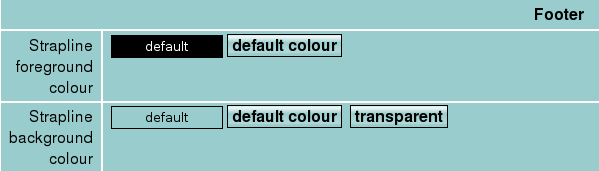 To change the strapline text colour, click on the coloured rectangle showing the current colour to display a colour picker window and select the new colour. To change the strapline background colour, click on the coloured rectangle showing the current colour to display a colour picker window and select the new colour. Input forms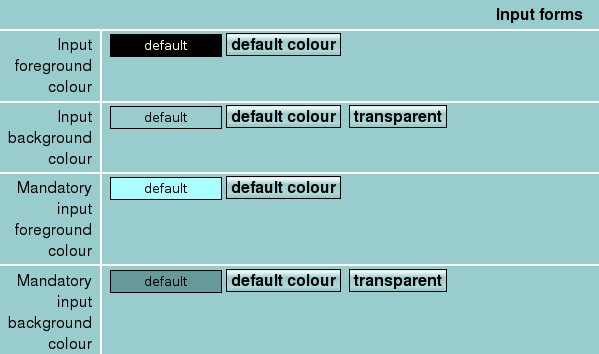 Viewers of your Webulator website who are not logged in are not affected by these settings at all. However, you may wish to adjust these colours if your overall colour scheme makes the Site Admin and Edit article pages hard to read. Colours and fonts This section of the Edit Site page allows you to change background and text colours and the fonts used throughout your website. |